Quick start (2 minutes)
Choose your folder
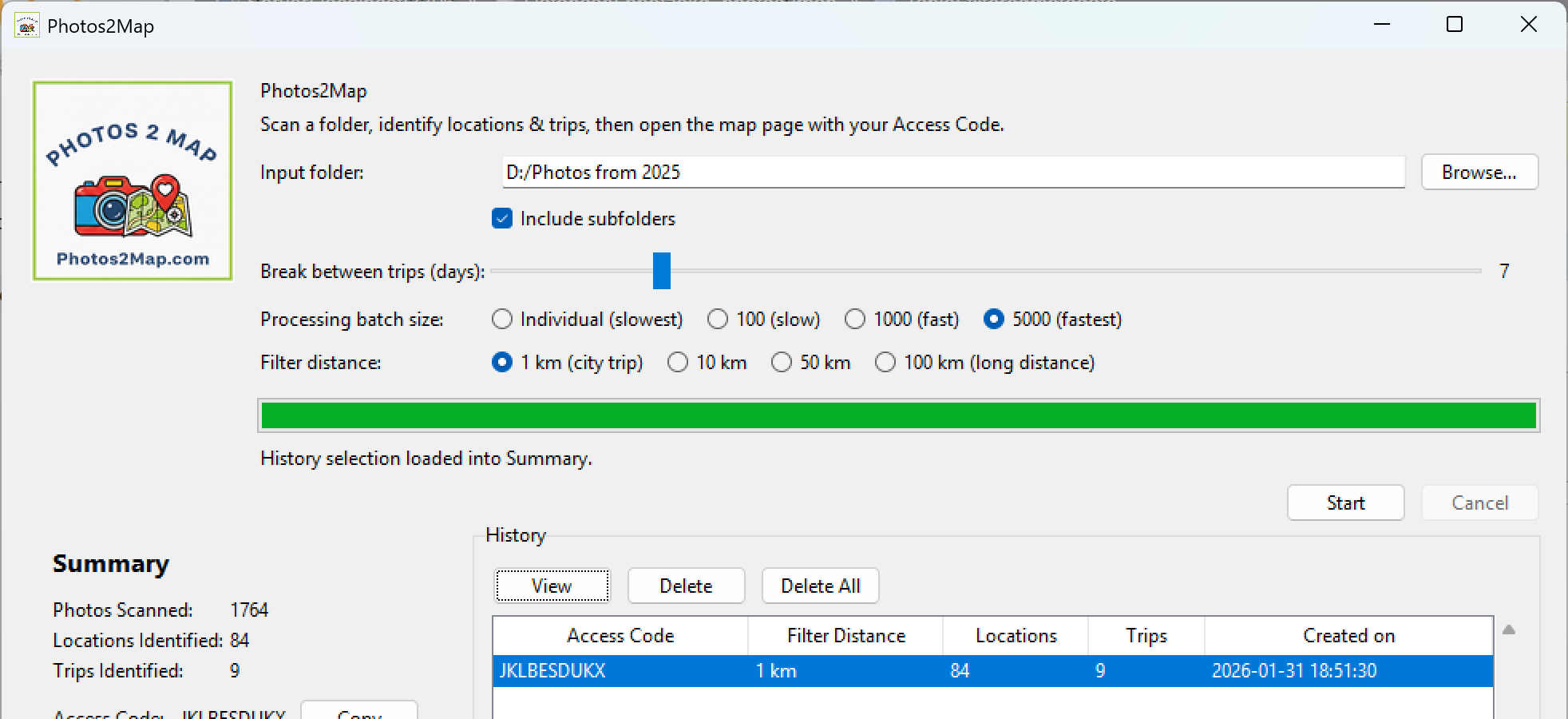
Click Browse… and pick the folder that contains your photos. If your photos are organised into folders inside folders (by month, by phone export, by trip…), keep Include subfolders ticked.

Pick your trip settings
Choose how the app groups your photos into trips, and how far apart points must be before it counts as a new place.

Click Start
The app scans your files, finds GPS locations, filters them, then uploads only the filtered map points to the website. You’ll get an Access Code to view your map.
What you’ll see after a scan
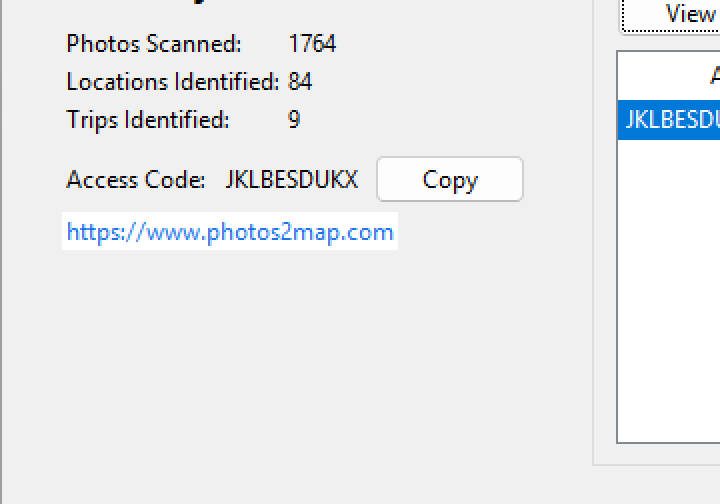
The Summary area shows what the app found. Your Access Code is the key you use on the website.
Open your map
- Click Copy to copy the Access Code.
- Open
https://www.photos2map.comand paste your code (or use the History View button).
Cancel anytime
If you hit Cancel during scanning, the app safely stops without changing your photos.
Progress bar
The green bar shows scanning progress. For very large folders, give it time (especially with lots of videos or RAW files).
Settings explained
Break between trips (days)
This slider decides when the app starts a new trip. It looks for a gap of n days with no photos, then starts a new trip after the gap.
- 3–7 days: good for regular holidays and weekend breaks.
- 14–30 days: good if your photo dates have long gaps (or you travel less often).
Filter distance
This avoids lots of points from the same place by keeping one “representative” location per day per area.
- 1 km: city walks — more detail.
- 10 km: general travel — great default.
- 50–100 km: road trips / long distance — fewer points.
Processing batch size
Controls how many files are processed at once. Larger batches can be faster, especially on big folders.
- Individual: slowest but most compatible.
- 100 / 1000: good balance.
- 5000: fastest for very large folders.
History & Access Codes
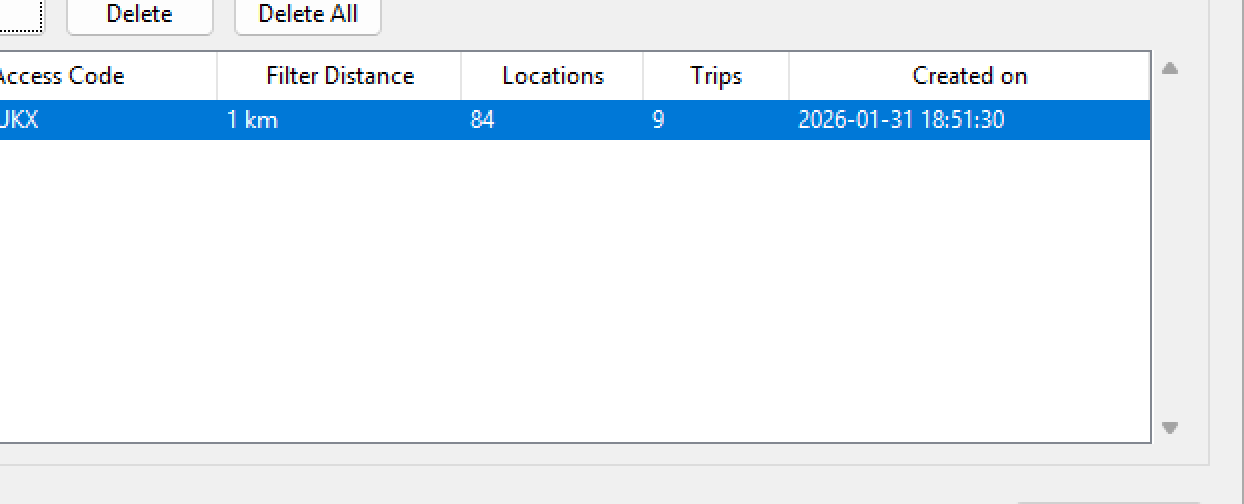
Every successful scan is saved in History, so you can re-open a map later without rescanning.
Buttons
- View: opens the map page for the selected Access Code.
- Delete: removes the selected scan from both the website and local History.
- Delete All: removes all scans from the website and clears local History.
Privacy & data (important!)
Photos 2 Map is designed to be privacy-first:
- No personal information leaves your device. The app does not upload your photo files.
- The app reads GPS + date metadata locally, then uploads only filtered map points (latitude/longitude, date/time, trip grouping, and your Access Code).
- The website does not use cookies or other tracking that identifies you personally.
- Read the privacy policy.
Good to know
- Nothing is changed or deleted in your photo folder — the scan is read-only.
- If a photo has no GPS data, it won’t appear on the map.
- You can scan the same folder again any time — each run generates a new Access Code.
Test Connection
Use this if you want to check the website is reachable from your network.

Troubleshooting
I scanned a folder but got 0 locations
- Many photos simply don’t contain GPS data (common on cameras if GPS was off).
- Try scanning a folder from your phone camera (phones usually include GPS).
- Make sure you’re using “originals” (some exports can strip location data).
Upload fails or “Connection failed”
- Click Test Connection to check the website is reachable.
- Try again on a different network (some corporate networks block unknown endpoints).
- If it still fails, your photos are safe — you can re-run later.
The map page opens but shows no points
- Double-check you’re using the correct Access Code (try History → View).
- Wait a few seconds and refresh (large uploads can take a moment to appear).
- If you deleted the scan from History, it was also deleted from the website.
My trip count looks “wrong”
Trips are split only by time gaps. If your “Break between trips (days)” is set too low, one holiday can become multiple trips. If it’s too high, separate trips may merge into one.
The scan feels slow
- Try increasing Processing batch size (e.g., 1000 or 5000).
- Scanning videos/RAW files can be slower than JPG photos.
- Scanning a network drive is usually slower than a local drive.
FAQ
Do my photos get uploaded to the website?
No. Photos 2 Map does not upload your photo files. It reads GPS/date info locally and uploads only the filtered map points needed to draw your travel map.
What exactly is an Access Code?
An Access Code is a random code created for each scan. It groups your uploaded map points together so you can view them on the website. It isn’t connected to your name, email, or identity.
Does the website use cookies or tracking?
No. Photos2Map.com does not use cookies or other identifiable tracking for this feature.
Can I delete my data from the website?
Yes. Select a scan in History and click Delete (or Delete All). The app deletes it from the website and removes it from your local History list.
Which file types are supported?
Common formats like JPG/JPEG/PNG plus many camera formats (including HEIC/HEIF, TIFF, WebP, and many RAW formats). If a file has readable GPS metadata, it can be included.
Why do some locations look “missing”?
If a photo doesn’t contain GPS data, it can’t be placed on the map. Also, the filter distance removes near-duplicates so your map stays clean and readable.
Can I scan multiple folders?
Absolutely. Scan one folder at a time. Each scan creates a new Access Code and a new History entry.
Can I use Photos 2 Map offline?
The scanning step works offline, but uploading and viewing the map requires an internet connection.